Professional PDF to CSV Converter Tool
Home PDF to CSV

PDF to CSV Converter Tools

Convert PDF tables and data into CSV format instantly. All processing happens securely in your browser.

Client-Side Processing
PDF to CSV
Instant Results

Drop your file here or click to browse

Supports: PDF File

Quick Answer

This tool converts text-based PDF tables into editable spreadsheet rows — entirely inside your browser. When you convert PDF to CSV online with Smart Convert, your file is never sent to a server, no account is needed, and you get a live preview before you download. Works with text-based PDF files only.

Will This Work for Your File?

Not every PDF converts cleanly into CSV. Before you upload, here is a quick way to check — the same mental check a freelancer might run before converting a client's project table or a student before exporting research data.

Which PDFs usually convert cleanly?

Yes, this tool works well if your PDF:

  • Contains selectable, copyable text (you can highlight it with your cursor)
  • Has clearly defined rows and columns, like a data table or structured report
  • Is a text-based PDF with consistent table layouts
  • Is a single file you want to convert one at a time
  • Has a clean grid structure — the kind of layout that makes pdf to csv for structured tables work the way it should

Which files are outside this tool's scope?

No, this tool is not the right fit if your PDF:

  • Is a scanned document or photo of a page — OCR is not supported
  • Contains image-only content with no selectable text
  • Is one of multiple files you need to convert at once — one file at a time only

Key Takeaway: This converter works best with text-based PDFs that contain structured tables. If you can highlight the text inside your PDF, you are in good shape. Scanned files and batch conversion are outside this tool's scope.

What Will the CSV Output Look Like Before You Download?

The output of this conversion is a plain-text file where every row of your original table becomes a line, and every column becomes a value separated by a comma. That structure makes it instantly readable by Excel, Google Sheets, and most data tools.

How headers, rows, and columns appear in preview

Here is how your PDF table data maps into the exported file:

In Your PDF In the CSV Output
Column header row First row of the CSV
Each data row A new line of comma-separated values
Cell values Plain text, no styling

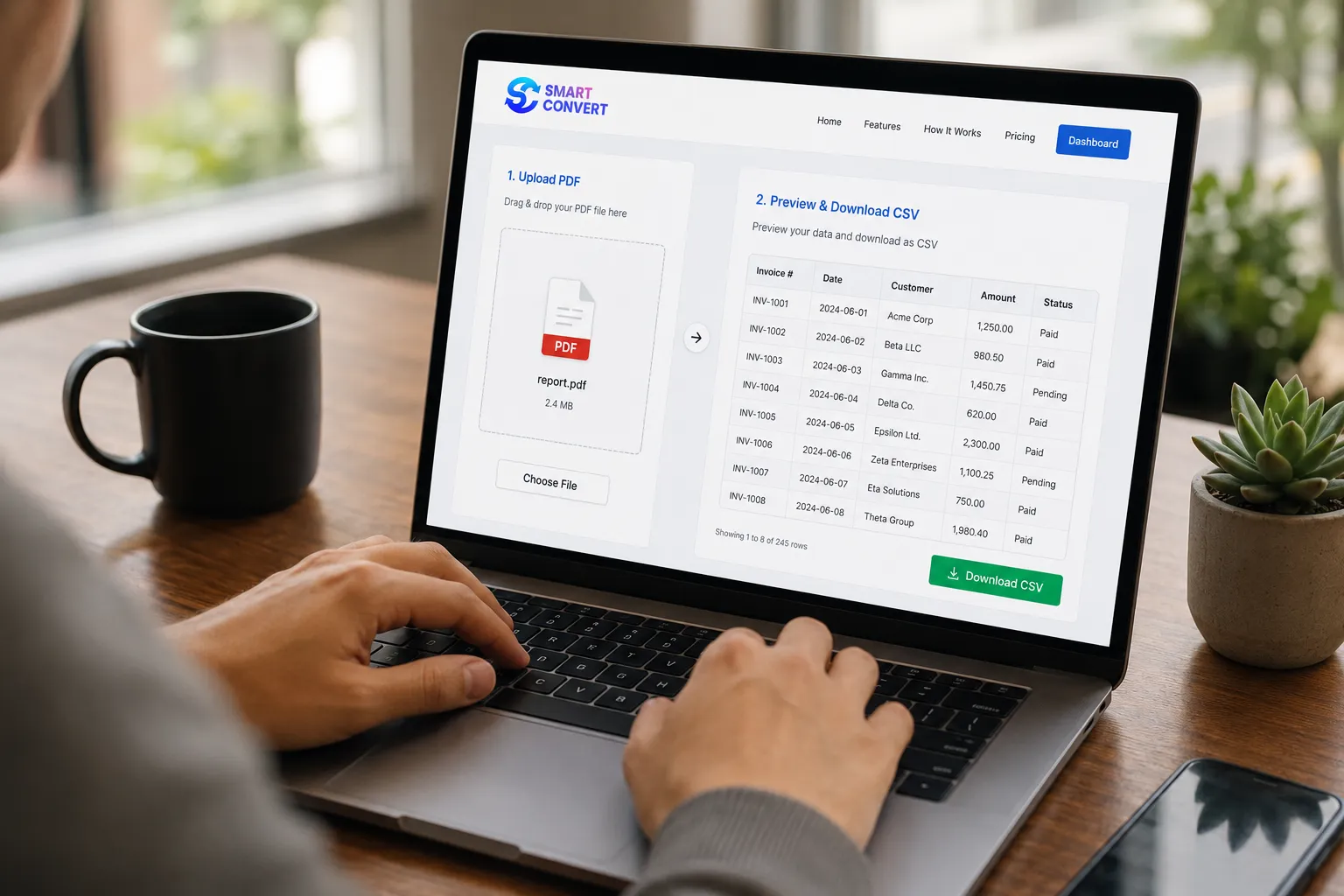
Before you download, the live preview shows you exactly how the data looks — so you can spot shifted columns or missing rows before the file ever hits your device.

An office professional checking a quarterly summary, for example, can confirm the row structure looks right in preview and skip the cleanup step entirely.

What happens when table data runs across multiple pages?

All pages are consolidated into one downloadable file. You do not need to merge anything manually — the pdf data to csv process pulls table content from every page and combines it into a single clean csv output.
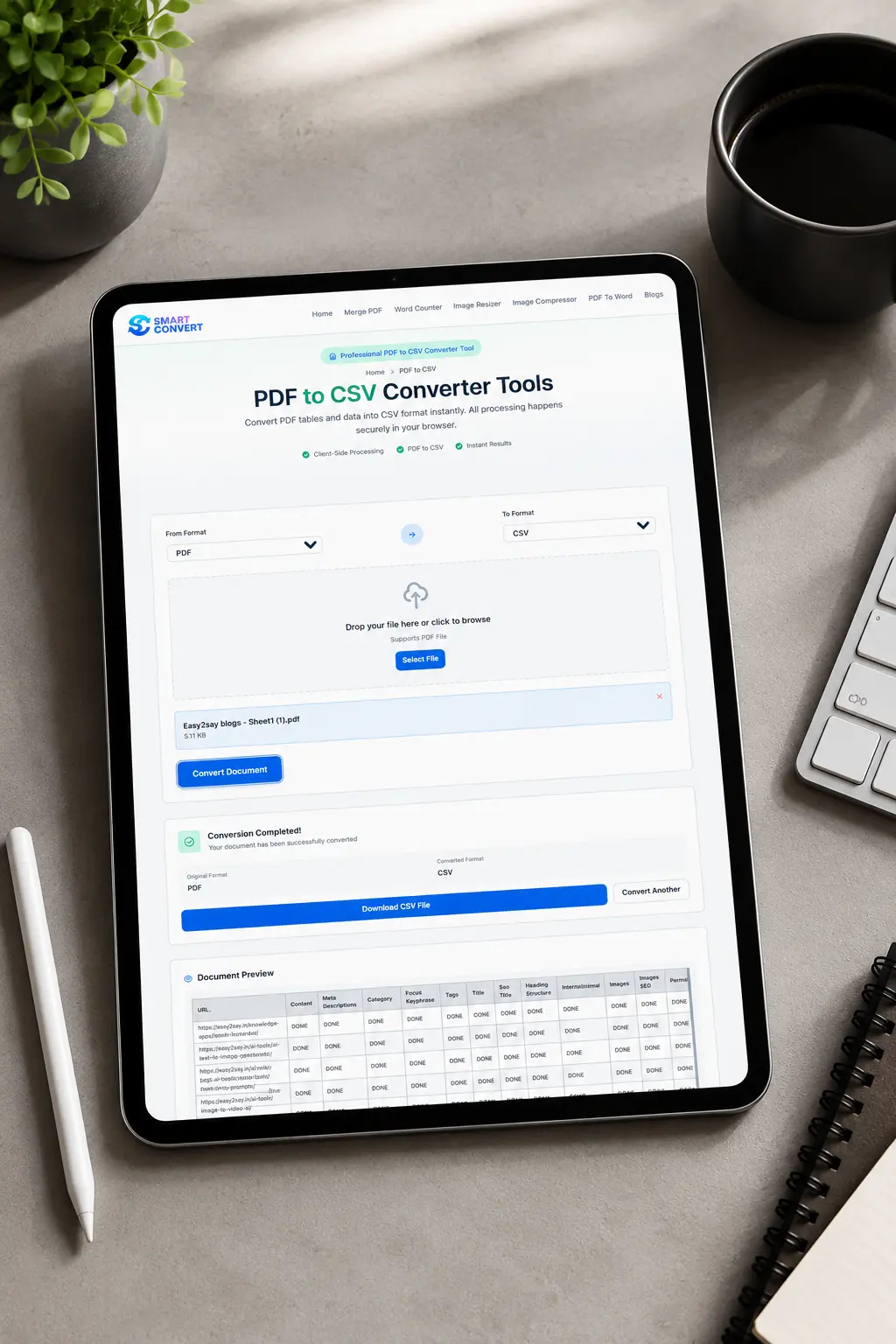
Live preview of CSV output before download

Key Takeaway: The preview shows your exact row-and-column structure before you commit to downloading. Multi-page tables are merged automatically, so what you see is what you get.
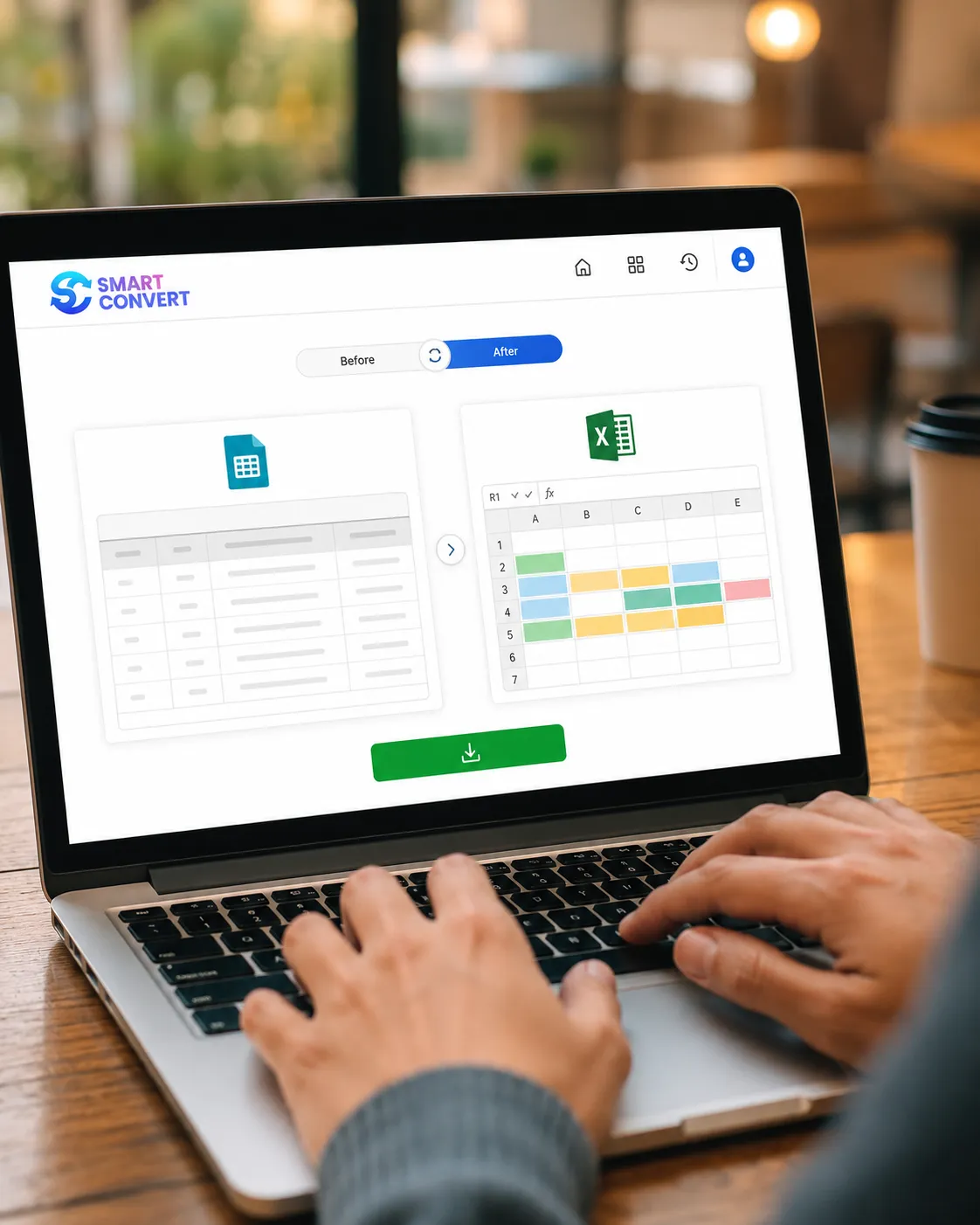
PDF to CSV vs PDF to Excel — Which One Should You Use Here?

Not sure whether CSV is the right format for what you need? Here is a quick breakdown to help you decide before you download.

Choosing between PDF to CSV and PDF to Excel

When CSV is the cleaner choice for structured table data

CSV works best when you need:

Factor CSV
File format Plain text, lightweight
Compatibility Opens in Excel, Google Sheets, Numbers, databases, and most data tools
Best for Reusable rows and columns, data import, quick analysis
Formatting None — just raw data

CSV is the universal format for structured table data. Because it stores only the data itself — no colors, no merged cells, no formulas — it moves cleanly between tools. When you convert pdf table to csv, you get a file you can open almost anywhere without worrying about compatibility.

When Excel is better after conversion, not instead of it

If you need formatting, formulas, or styled layouts after extraction, Excel (XLSX) is the better destination — but that is a next step, not a replacement.

You can import csv into excel in seconds. Many home users do exactly this: convert first, then open the CSV in Excel and build the spreadsheet they actually need.

Key Takeaway: CSV is the right output when portability and simplicity matter most. If you need formulas or formatting, export to CSV first — then open and build in Excel from there.

How to Convert PDF to CSV in the Smartest Way

The process is straightforward, but knowing what to look for at each step makes the difference between a clean output and a messy one. You can convert PDF to CSV online with no account, no installation, and no surprises.

Simple steps to convert PDF to CSV
1

Add your file and review the live preview

Drop your text-based PDF into the converter — one file at a time, no signup needed. Once the tool processes it, check the live preview carefully. Look at whether the column headers are where you expect them, whether rows are splitting at the right points, and whether any data looks jumbled.

Someone converting a multi-page report for the first time often notices small layout issues here that are much easier to catch now than after opening the file in a spreadsheet.

2

Download the result once the structure looks right

If the preview looks clean, you are ready to export the pdf to csv and download it directly. If something looks off — a collapsed column or a misaligned row — that is your cue to revisit the source file before saving.

Key Takeaway: The live preview is your best checkpoint — use it. One file, one review, one clean download is the smartest way to convert PDF to CSV without rework.

What Data Is Kept, and What Gets Lost in CSV?

CSV is a raw data format. It captures text and numbers exactly as they appear in a structured table, nothing more. Someone who tried to convert a color-coded report recently was surprised to find the data arrived perfectly intact, but every color, border, and font was gone. That is by design, not a bug.

What CSV keeps well from a text-based table

Preserved
Cell text and numeric values
Row and column structure
Header labels (when present in the PDF)
Multi-page table data (consolidated into one file)

When you keep table structure when converting pdf to CSV, what survives is the underlying data — cleanly separated and ready to sort, filter, or analyze.

What formatting, styling, and layout details do not carry over

Not Preserved
Merged cells
Formulas or calculated values
Colors, fonts, and borders
Cell alignment or spacing
Any visual styling from the original document

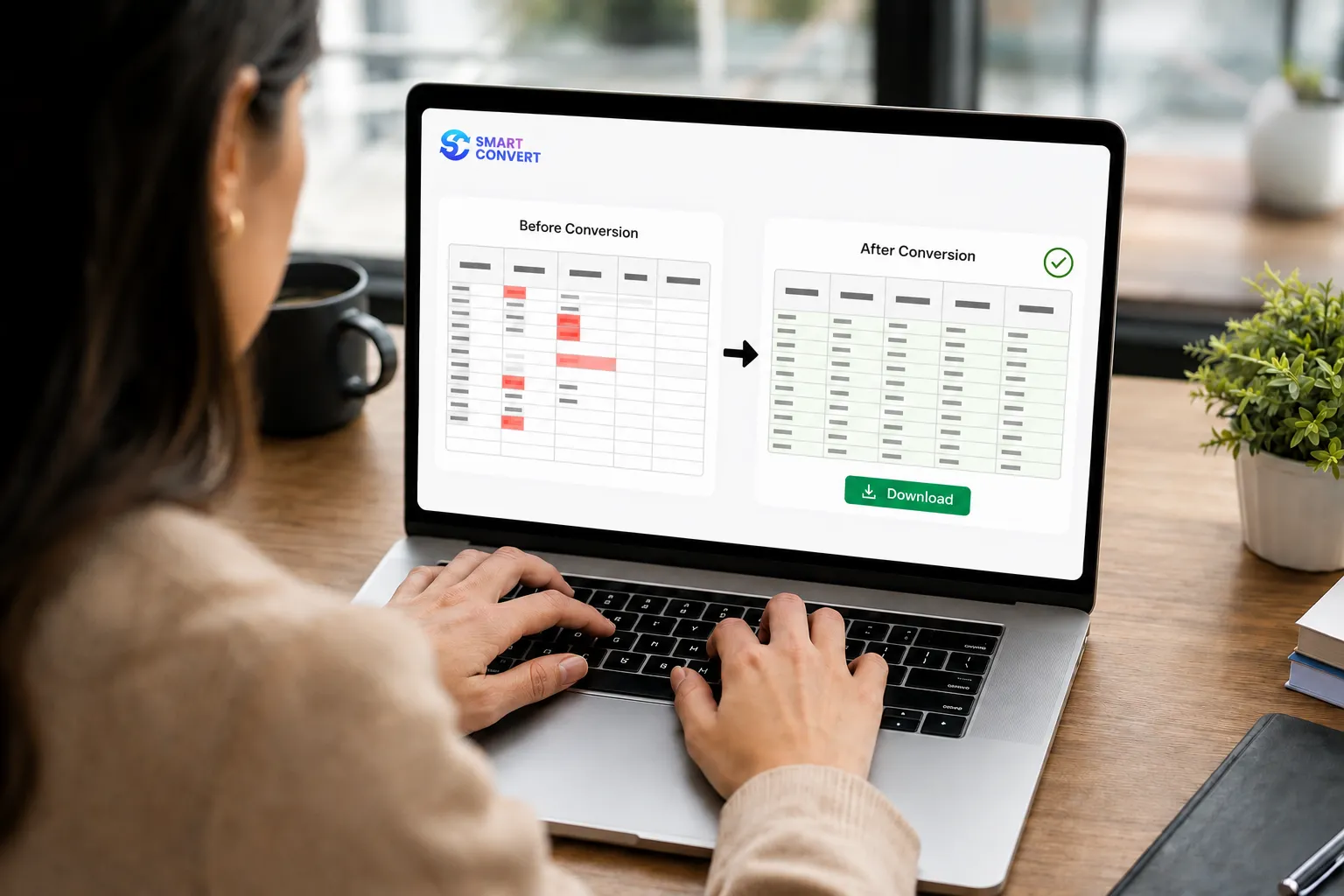
Does pdf to csv keep formatting? No — and that is the honest answer. Understanding what data is lost when converting pdf to csv upfront saves you from surprises after download.

Key Takeaway: CSV preserves your table's raw content — text, numbers, and structure — but not how it looked. If your workflow depends on formulas or styled cells, plan to rebuild those in your spreadsheet after export.

Why Columns Sometimes Break — And How to Get Cleaner Output

Not every table converts perfectly on the first try. When a PDF uses complex layouts — nested headers, irregular column widths, or cells that visually span rows — table parsing can produce unexpected results. The good news: most issues are predictable, and most are fixable.

Column breaking issues and solutions

What usually causes messy rows or shifted columns?

Issue Likely Cause
Values land in wrong columns Irregular column spacing in the source PDF
Rows merge unexpectedly Visually spanned cells without real text boundaries
Blank rows appear between data Extra whitespace or section breaks in the original
Headers repeat mid-file Multi-page layout with repeated header rows

How can you improve the result before you download?

To get clean csv output and preserve columns in pdf to csv as cleanly as possible:

  • Use the live preview first — check alignment before committing to download
  • Simpler tables convert better — clean grids with one row per data point work best
  • Avoid source files with merged or spanned cells — these rarely map to CSV cleanly
  • Check for blank rows — they often signal layout gaps, not real data breaks

Key Takeaway: Most column and row issues come from the original PDF layout, not the conversion itself. A quick check in the live preview before downloading will catch most problems before they become cleanup work.

Who This Tool Helps Most Around the World

CSV is one of the most universally supported file formats — readable by virtually every spreadsheet app, database tool, and data platform in use today. That makes extracting structured data from PDF into CSV a practical choice for a wide range of everyday users.

Students

Converting data tables from academic papers or published studies can pull figures directly into a spreadsheet for analysis — no manual retyping needed.

Freelancers

Working with client-supplied PDFs containing pricing lists or service catalogs can turn those into editable files to update, sort, or reformat for a proposal.

Office Users

Handling recurring PDF exports — like attendance records, project trackers, or budget summaries — can use this tool to get that data into a workable format fast.

Home Users

Wanting to know if pdf to csv is good for tables like utility breakdowns, membership lists, or event schedules will find the answer is yes — as long as the file is text-based.

Once downloaded, the CSV opens cleanly in tools like Excel or Google Sheets, making it easy to sort, filter, or share.

Key Takeaway: This tool works for everyday people across the world — students, freelancers, office users, and home users alike. If your PDF has a real text-based table, the output is ready to open and use right away.

When This Tool Is a Better Fit Than Bigger Document Platforms

Some document platforms are built for teams managing hundreds of files, complex workflows, and layered permissions. If you just need to pull a pdf table to csv once and get on with your day, that kind of setup is more than you need.

Why private browser processing matters for everyday users

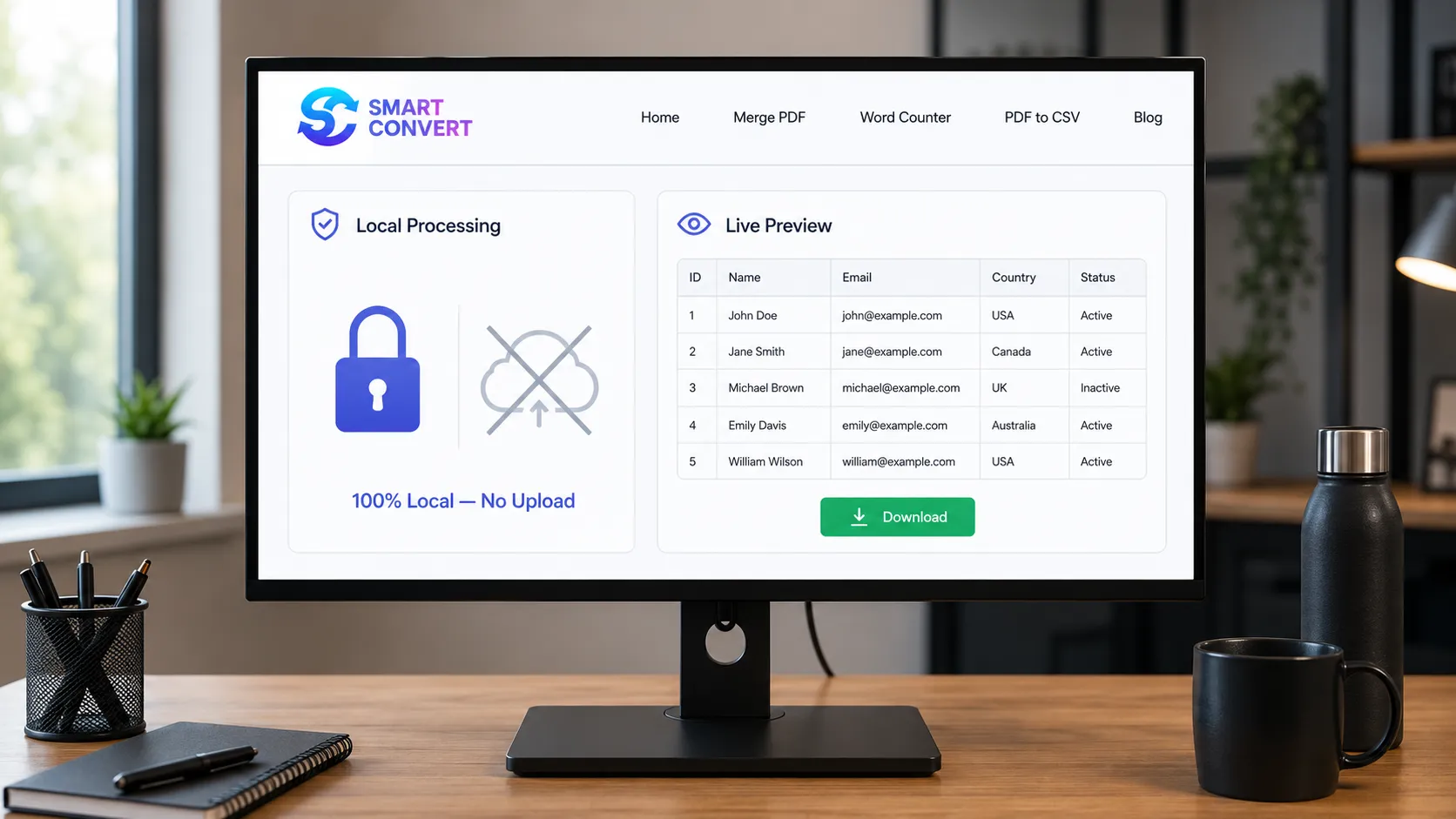
Your file never leaves your device — processing happens entirely in your browser

No cloud uploads, no third-party storage, no account trail

Ideal for anyone handling data they'd rather keep private — whether that's a contract summary, a supplier list, or a personal record

Structured data extraction stays local, which is a meaningful difference from platforms that route files through remote servers

Why no signup and instant results reduce friction worldwide

No account creation, no email confirmation, no waiting

Open the tool, add your file, export pdf to csv, done

Larger platforms often bundle features most everyday users never touch — this tool skips all of that

One file, one output, no detours

Key Takeaway: If your need is simple — one text-based file, one clean output — this tool cuts straight to the result without the overhead of bigger platforms. No signup, no server uploads, and no unnecessary steps between you and your data.

Why We Built Smart Convert to Run Entirely in Your Browser

When we designed Smart Convert, two questions shaped every technical decision: Where does the file go? And how does the user know the output is right before they commit to it? The answers drove the architecture you use today.

Local browser-only file processing

What Local-Only Processing Solves That Cloud Workflows Do Not

Most document tools send your file to a remote server for processing. That means your data — payroll tables, supplier lists, internal records — travels somewhere outside your device before you ever see a result.

We chose a different path. All file processing runs directly in your browser. Nothing is transmitted to a server. Nothing is stored. The moment you close the tab, the file is gone.

"We built local processing as the default because trust shouldn't be optional. When you use this tool as a pdf to csv converter, your file never leaves your machine — and that's not a feature we added later. It was the starting point."

— Smart Convert Team

Key Takeaway: This tool processes your file locally, meaning your data stays on your device throughout. The live preview gives you control before you download, and the lack of a signup requirement keeps the process friction-free from start to finish.

FAQs

Is this PDF to CSV converter really free to use?

Yes, completely. There are no hidden charges, no premium tiers to unlock, and no usage limits to worry about. You upload your file, review the output in the live preview, and download your CSV — all at no cost. Nothing is held behind a paywall.

Do I need to create an account before I convert PDF to CSV?

No account, no signup, no email required. You can go straight to converting without registering anything. This was a deliberate design choice — the tool is built for people who need a result quickly, without friction standing in the way.

Does PDF to CSV work for reports with tables across multiple pages?

Yes. When a table runs across several pages, the output consolidates everything into a single downloadable CSV file. You won't get separate files per page. Check the live preview first to confirm the rows and columns have carried over the way you expect before downloading.

Can I preview the output before I download the file?

Absolutely. A live preview loads after your file is processed, showing you how the headers, rows, and columns will appear in the CSV. If something looks off — shifted columns, missing rows — you can catch it there rather than after downloading.

Why does my CSV look messy after conversion?

The most likely cause is the source PDF itself. Tables with merged cells, irregular column spacing, or overlapping layout elements don't always parse cleanly into flat rows and columns. Simpler, grid-based tables tend to produce the cleanest output. The preview is the best place to spot these issues early.

Can I open the exported file in Excel or Google Sheets?

Yes — CSV is a universally compatible format that opens directly in both Excel and Google Sheets. Keep in mind that raw data is what transfers, not visual styling, formulas, or cell formatting. Those don't carry over in a CSV file, regardless of what the original PDF contained.